
From left to right; Minimise, Unlock for Editing, Table, 4 VCR buttons to move through records, Search, Change Layout, Refresh layout, Delete an Item, Enter a New Item, Save Item
 This is the Excel button.
Whatever you see on your screen will be shown in an Excel session. You may wish
to generate your own reports using this feature.
This is the Excel button.
Whatever you see on your screen will be shown in an Excel session. You may wish
to generate your own reports using this feature.
 This is the Histogram
display button and displays a pop-up as shown below. In this case, all items are shown.
This is the Histogram
display button and displays a pop-up as shown below. In this case, all items are shown.
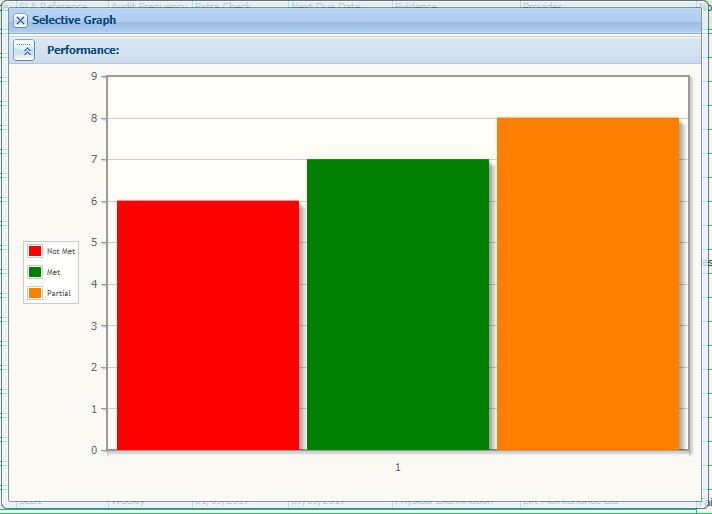
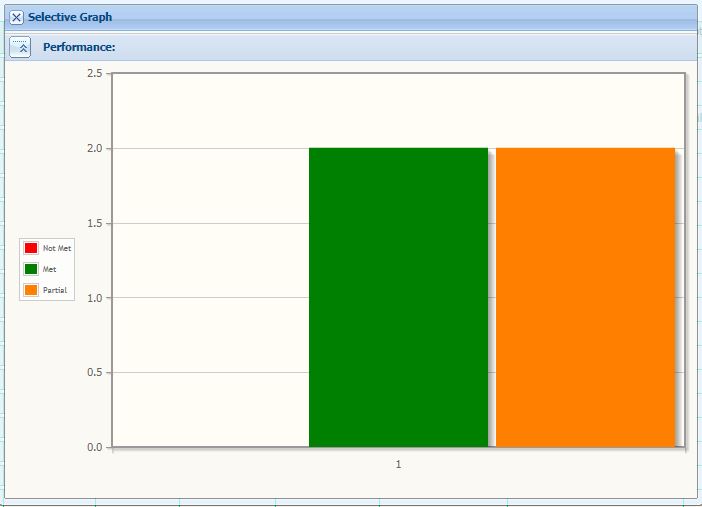
Following a selection of one area this is the result.
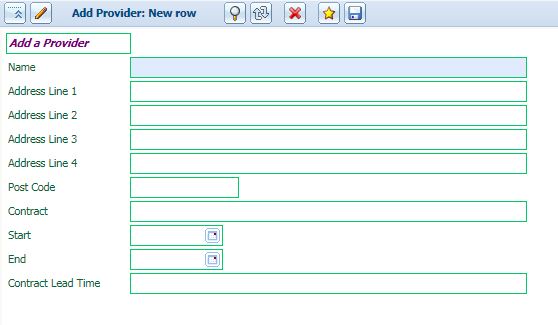
Name = Company Name. If the services are provided by an "In House" team, the team need to be identified as a provider
Address Lines 1 & 2 are mandatory
Post Code is required
Contract is the area of expertise for this provider. This is a general description of the types of service a provider can offer
Start and End are optional and as a guide only.
Contract Lead Time is optional. Enter negotiation/lead time for contract renewal.
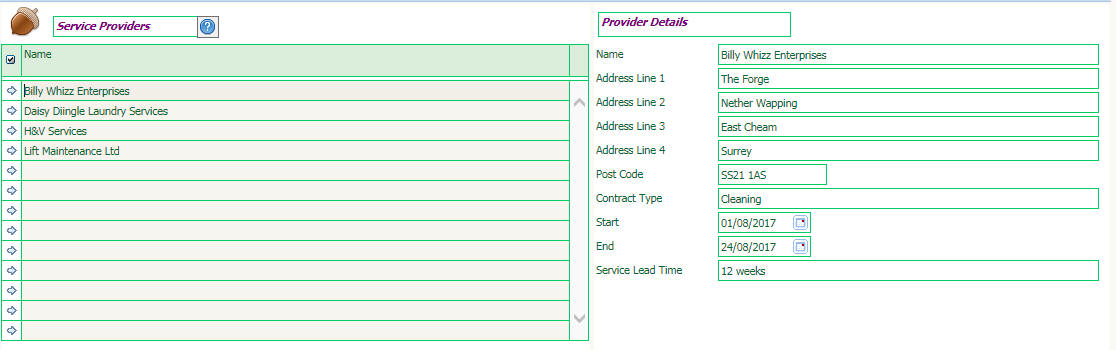
Left panel shows the Service Provider name. Chosing a different row shows the corresponding details in the right hand panel
Right panel shows the corresponding details for the row selected in the left hand panel
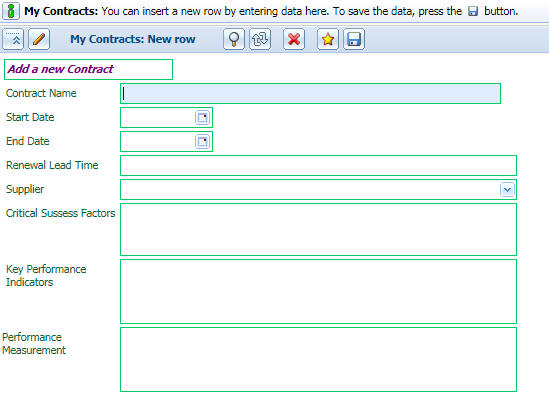
Contract Name. This is a general contract type, like Laundry, Security, Office Cleaning.
Start and end date are required. If the contract is perpetual, set the end date well into the future
Renewal lead time allows for negotiation planning. Optional
**Supplier. This is your Provider. Select from the list.
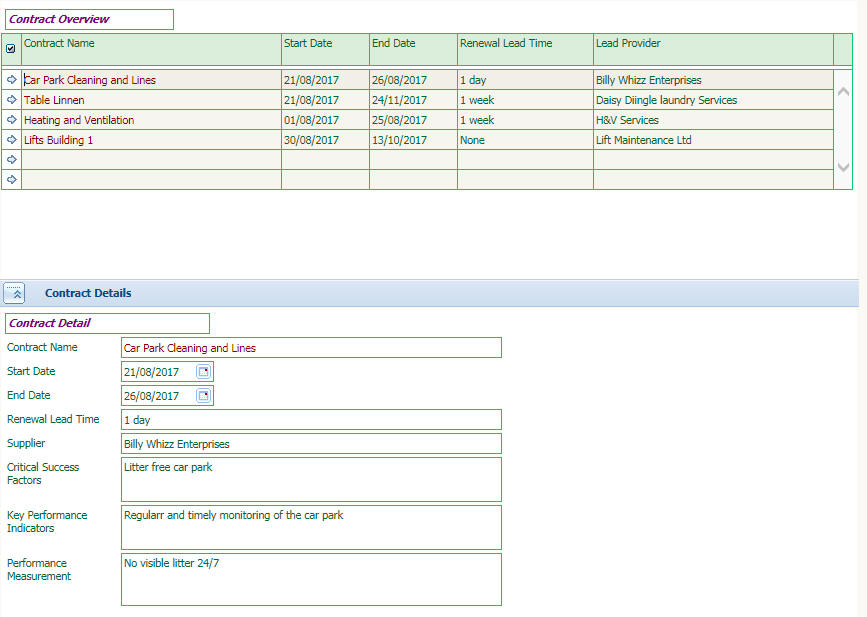
Top panel shows Contracts
Bottom Panel shows details of the contract

Details of your contacts, who they work for and their contact details should you wish to send email
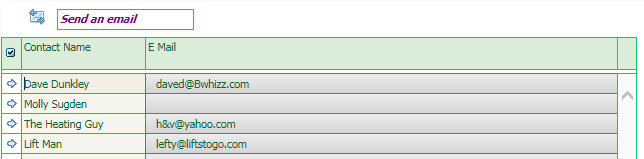
Click E Mail and your local mail server will start and you can send email to this contact
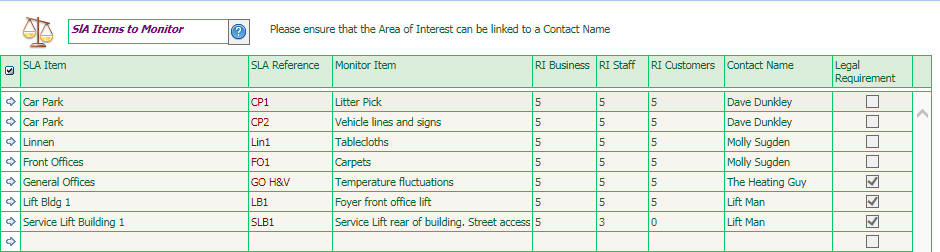
These are the specific items you wish to monitor
One provider can carry out many services
An Area of Interest SLA Items to Monitor is required in order to carry out an Audit of the service

The first panel shows a list of items which have been audited.
The title line shows the number of Met, Not Met and Partially Met entries.
The Graph shows the details in a Histogram.
Each item audited, or group of items can be selected, so it is possible to drill down within any of the fields on the panel.
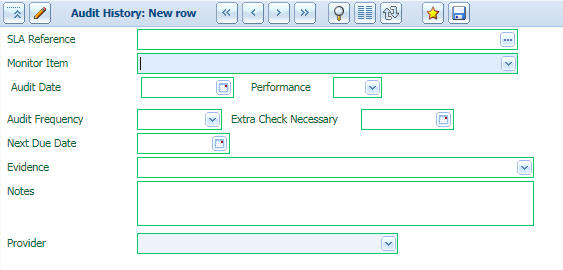
When entering a new Audit, the panel changes to show a detailed view for data entry. The next audit due date is calculated automatically using the last audit date and the audit frequency
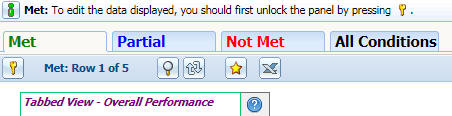
This panel shows 4 Tabs; Met, Partial, Not Met and All Conditions.
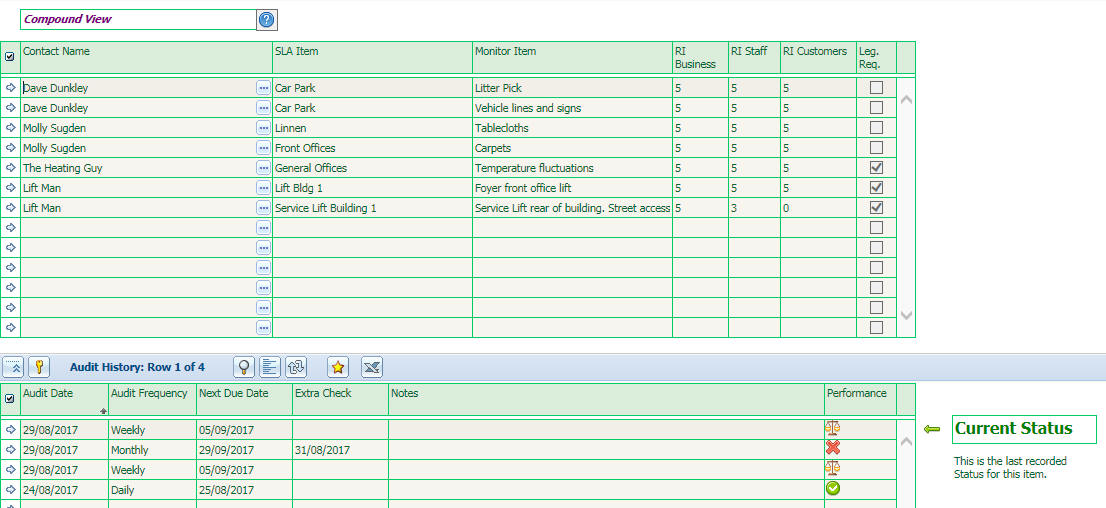
The top panel shows the item which has been audited.
The bottom panel shows the individual audits in date order for that item.
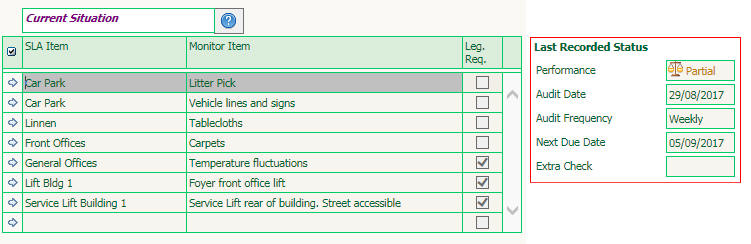
For each item of interest, the corresponding last recorded status is shown
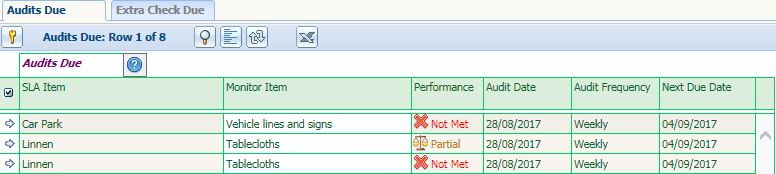
The task list shows details of the reviews which are due on the current day or in the past, with an additional tab which
shows details of those items requiring an Extra Check.
Users - Not Active Yet
Add users name, role and pin number to access the application.
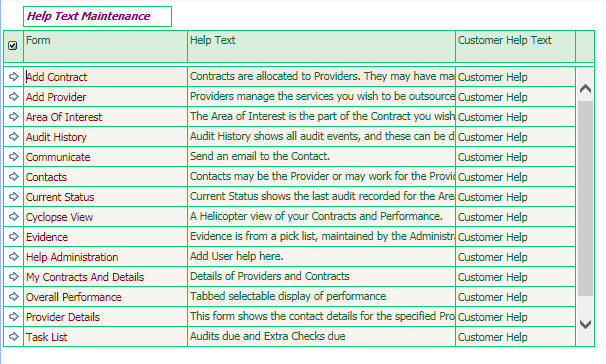
Add you own help text here as you get used to the system
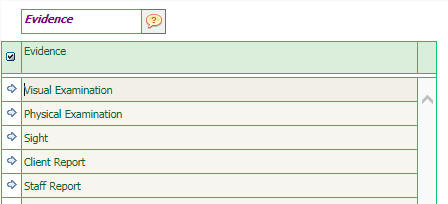
Each audit requires evidence to support the findings of the audit. Enter your selection here and the list will be displayed during Audit completion.